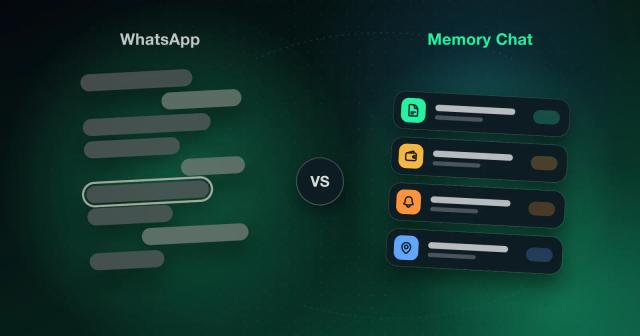

Organize Notes After Quick Capture: Move, Duplicate and Clone
Capture now, sort tonight. How to move a note to its real home, reuse a daily list, and clone a whole project in Memory Chat in a couple of taps.
The plumber. You remembered at the school gate, typed "call plumber re: kitchen tap" into Memory Chat's Inbox one-handed, and got on with your morning. No notebook to pick, no tags, which is the whole point of the Inbox, since it takes things as fast as a text message and asks nothing about where they go.
Sorting it out later
By Thursday, though, that line is sitting between a client idea, a voice memo about the garden and a photo of a paint swatch, and in three weeks you'll be scrolling for it. And in most apps, re-filing a note means copying the text, opening another notebook, recreating the note, re-attaching the photos or recordings, deleting the original and fixing the date by hand. Memory Chat does each of those in a couple of taps.
Move: put a note where it belongs
Move takes a note out of your Inbox and drops it into its real home, and it keeps everything on the way, including formatting, ticked checklist items, budget calculations, map pins and attachments.
- Long-press the note, checklist or calculation in your Inbox or a chat feed
- Tap Move
- Choose Keep original date or Update to today
- Pick the destination Memory Box, searching all boxes, switching between Recent and All, or showing archived boxes
- Tap Change Workspace if it belongs in a different Workspace
For the plumber, Update to today makes sense, because it's still a job to do and you want it at the bottom of today's feed where you'll see it, whereas a journal entry from last week is better left on its original date. Then tap Change Workspace and send it from Personal over to a Home Workspace, into the box where the kitchen stuff lives. If the note has a countdown or stopwatch running on it, Memory Chat won't let you move it until the timer's done, so the session isn't lost halfway through.
Duplicate: a copy in the same box
Say the plumber quotes you a price and you've got a little budget calculation going for the kitchen. Before you start fiddling with the numbers, long-press it and choose Duplicate in Place. The copy keeps the original timestamp and sits right next to it, so you've got a snapshot of the "before" without messing up the order of the feed. Duplicate as New is the other option, and it's the one for things you reuse. Your Saturday grocery checklist, a workout, a packing list or a meeting agenda gets copied with today's date and lands at the bottom of today's feed as a fresh note, ready to tick off again, and it's also a quick way to pull an old reference note back into view.
Clone: copy it into another box or Workspace
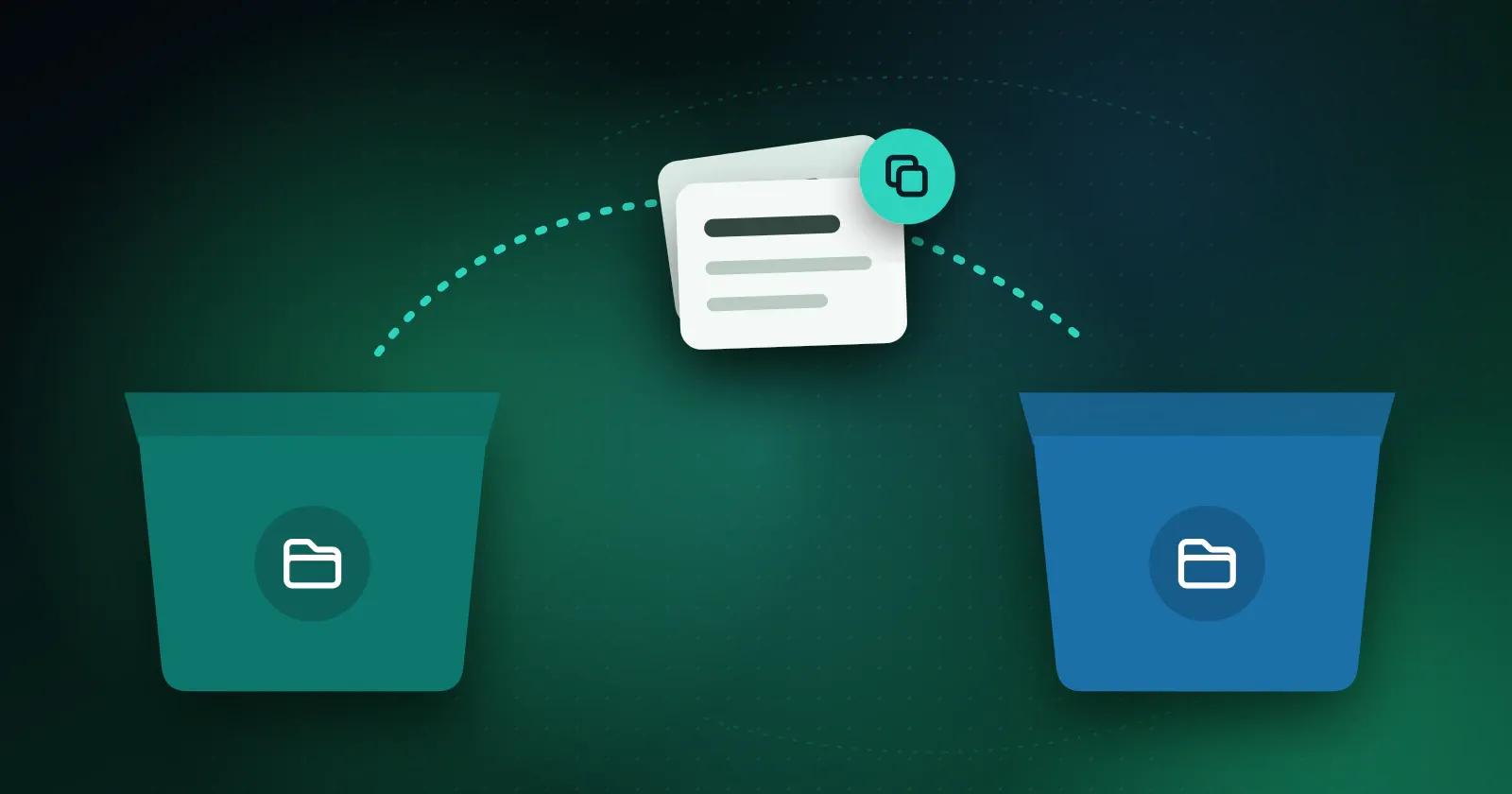
Clone is Duplicate's bigger sibling. Duplicate stays inside the current Memory Box, while Clone puts a copy in a different Memory Box or Workspace and leaves the original where it was. If the note has photos, recordings or files, Memory Chat asks whether to bring them along, which keeps your storage from filling up when all you wanted was the text as a template. Clone has the same Workspace switcher, so an onboarding checklist from Work can become the starting point for a new client's Workspace in seconds.
Moving or cloning a whole Memory Box
You can do the same with entire boxes. When a side project turns into real work, move its whole Memory Box, with every note, checklist and audio memo and all its history, into a Workspace of its own. Or clone a box to reuse a project structure, a trip itinerary or a client workflow as a template, and choose whether the copied notes keep their original dates or roll forward.
A two-minute evening routine
None of this needs a big weekly review. Through the day, throw everything into your Inbox without thinking about folders. In the evening, spend two minutes going down the list. Long-press anything that needs doing and Move it to its project box, use Duplicate as New on tomorrow's workout or packing list so it's waiting in the morning, and archive whatever's finished.
Try it tonight with whatever is sitting in your Inbox right now, and see how long it takes to get it to zero. Get started with Memory Chat.