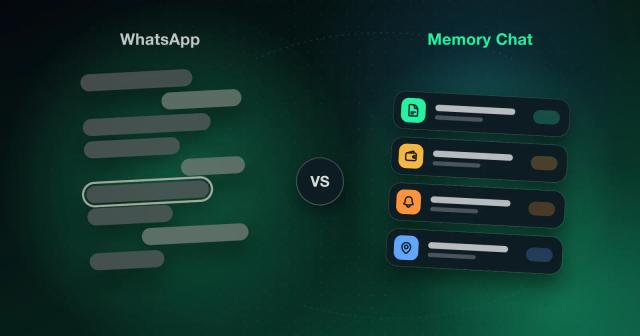

Favorite Notes in Memory Chat: Keep the Notes You Use Most One Tap Away
Mark the notes you open every day with an emoji and find them in one place. Favorites work offline and sync when you reconnect.

A few months into using Memory Chat, you'll probably have a lot in it: notes, checklists, calculations, timers, voice recordings, files. That's the point. But it also means the five things you open every day are now buried among the five hundred you don't.
That's what Favorite Notes is for: you mark the handful that matter with an emoji, and they collect in one place where you don't have to go looking for them.
What it does
With Favorite Notes you can:
- Mark any note as a favorite, whether it's a checklist, a calculation, a saved location, or a timer
- Give each favorite an emoji you choose, such as ⏳ for time-tracking, 📅 for meetings, ⚡ for quick jobs, and ‼️ for whatever can't wait
- See all your favorites together in Favorite Notes, including offline
How to use it
Add a favorite. Press and hold any note, whether it's in General Box, Checklists, or Calculations, then pick an emoji.
Pick an emoji that means something to you. ⭐ for important, ⚡ for quick, ‼️ for urgent, or your own system. It appears next to the note, so you can spot it at a glance.
Open Favorite Notes to see everything you've marked in one list.
Change or remove one by pressing and holding it again. You can swap the emoji or take it out of Favorites.
Work on notes right there. Inside Favorite Notes you can add a reminder, attach a timer, or edit the text without going back to the main screen.
Why it's worth two seconds per note
The emoji ends up doing most of the work. Give it a week and you'll find yourself skipping the titles entirely and just looking for the ‼️, which turns finding a note into one tap rather than a scroll through everything. Favorites are available offline as well, and any edits you make sync once you're back online, so the list on the train is the same list you had at your desk.
Who gets the most out of it
For someone running a business, or just a busy job, it tends to become the home for today's projects, calculations and meetings. Writers and other creators often treat it as the short pile of ideas and drafts they're actually working on right now, as opposed to everything they've ever saved. Students can keep this week's lecture notes, assignments and exam material there, so revision doesn't begin with twenty minutes of hunting. For everyone else it's the shopping list, the recurring plans, and that one address you somehow never remember.
In short
The more you save, the harder it gets to find the thing you need. Favorite Notes keeps your most important notes and checklists together, marked with emojis you chose, online or off.